


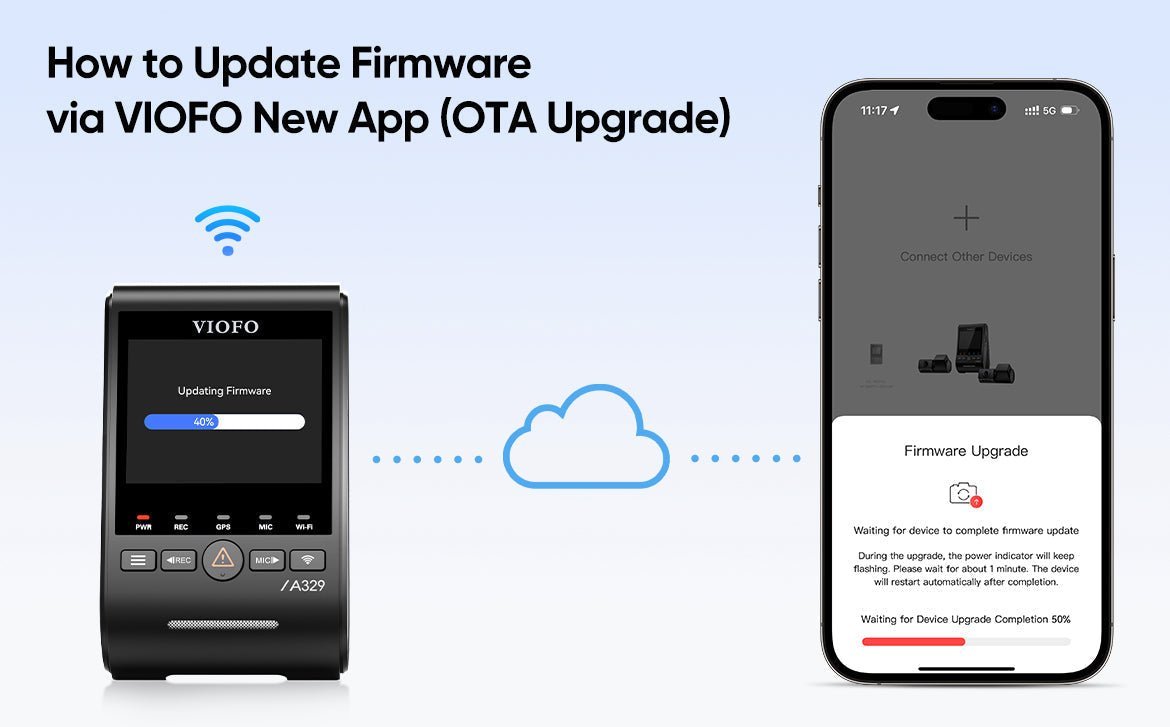
Keeping your dash cam up to date ensures the best performance, stability, and access to new features. VIOFO now offers a smoother and more convenient way to update your dash cam firmware—OTA (Over-the-Air) updates through the VIOFO New App. Compared with the previous SD-card and cable-based update methods, OTA updates simplify the entire process and require no file downloads or manual transfers.
Why OTA Firmware Update?
Before OTA, users had to update the firmware manually, either by placing the file on a microSD card or transferring it to the dash cam via a USB data cable.
Now, OTA updates make everything effortless:
● No need to remove the memory card or connect a USB cable
● No file extraction or manual copying
● Faster and more user-friendly
● Automatic detection of new firmware versions
● Guided update steps inside the app
With OTA, the dash cam handles the update seamlessly once the app sends the firmware file.
What You Need Before Starting
To ensure a smooth update process:
● Your phone must have a SIM card to allow the app to download the firmware package.
● Ensure the memory card is inserted and power is connected.
● Make sure your VIOFO Dashcam App is installed and updated.
● Enable the dash cam's Wi-Fi.
● If an SSD is connected to the dash cam, please disconnect it before updating.
Step-by-Step OTA Update Guide
1. Power on the Dash Cam and Turn on Wi-Fi
Enable the dash cam's Wi-Fi so your phone can connect directly to it.
2. Open the VIOFO App
Launch the app and select your dash cam model.

Download the App:
● iOS: Download on the App Store
● Android: Get it on Google Play

3. Connect Your Phone to the Dash Cam's Wi-Fi
Go to your phone's Wi-Fi settings and connect to the dash cam's network
(Wi-Fi name: 5G_VIOFO_<Device Name>_xxxx, default password: 12345678).

4. App Automatically Recognizes New Firmware
If a new firmware version is available for your model, the home screen will display a pop-up reminding you to download it.

5. Download the Firmware
Tap Download. The app will fetch the new firmware version using your mobile data (SIM required).

6. Automatic Update Begins
Once downloaded, the app will automatically push the firmware to the dash cam.
During this stage, do not power off the dash cam.

7. Wait for the Update to Complete
The dash cam will update itself and reboot automatically after completion.

8. Restart and You're Ready to Go
After rebooting, your dash cam will be running the latest firmware.

Watch Video:
Final Thoughts
The OTA update system makes firmware updates faster and more accessible than ever. With just a few taps on the VIOFO App, your dash cam stays current without the hassle of manual file transfers.
This streamlined approach helps ensure your device always performs at its best—with improved stability, new features, and an overall smoother experience.