


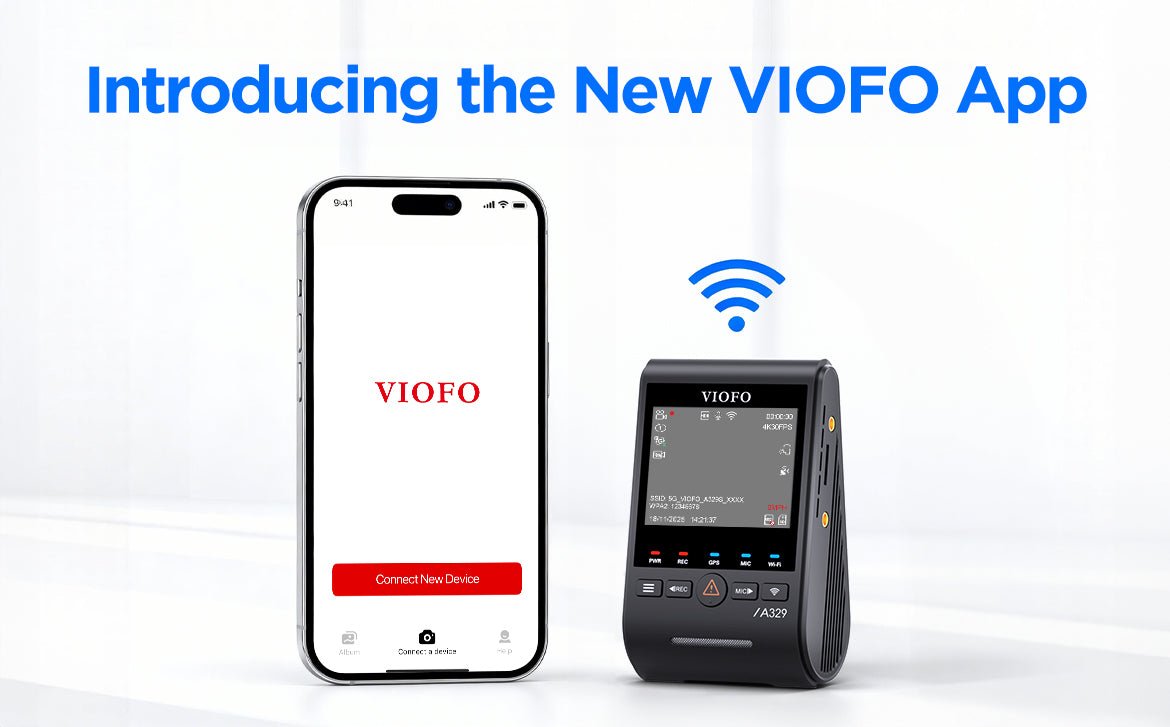
In the era of smart devices, VIOFO is taking driving safety and convenience to the next level—not just with advanced dash cams, but with the new VIOFO App, your all-in-one mobile control center. From wireless live view to easy file management and firmware updates, the new app makes your dash cam experience smarter and more effortless than ever.
What Is the VIOFO App?
The VIOFO App is the official mobile management app for VIOFO dash cams. By connecting your smartphone to the dash cam via Wi-Fi, you can easily view, playback, download, and adjust settings without touching the device itself.
Key Features:
Live Preview
Watch your dash cam's live view directly from your phone.

Playback & Gallery
- Quickly locate the footage you need with clear file categories.

- Easily switch between different camera views.

- Select specific dates to view recordings (days with saved footage are marked with red dots).

File Download
Download multiple video files at once with stable and fast transfer speeds.

Remote Settings
Adjust key parameters like resolution, WDR/HDR, and parking mode directly from your smartphone.

OTA Firmware Update
Get notified automatically when new firmware is available (The app detects and preloads the latest version once connected to Wi-Fi).

Four Major Upgrades in the New VIOFO App
Smarter Connection
The home screen now lists all your previously connected devices with icons and names. Tap any unconnected device, and the app will automatically detect and connect to its Wi-Fi.
Clearer Device Recognition
Each connected device is displayed with both an icon and its original Wi-Fi name, allowing you to instantly recognize your device visually.
Enhanced Language Support
The app automatically follows your phone's system language, but you can also manually select your preferred language in the settings—giving you full control over your user experience.
Seamless OTA Updates
Once your dash cam is connected, the app automatically detects new firmware. A pop-up appears—"New firmware detected. Would you like to upgrade?" The update is preloaded over Wi-Fi and installs automatically after confirmation. The dash cam then restarts to complete the process.
How to Use the VIOFO App
1. Download the App
iOS: https://apps.apple.com/us/app/viofo%E8%AE%B0%E5%BD%95%E4%BB%AA/id6738685801
Android: https://play.google.com/store/apps/details?id=com.viofo.dashcam

2. Connect Your Dash Cam
- Make sure your dash cam is powered on and Wi-Fi is enabled. (Press and hold the Wi-Fi button for 3 seconds.)
- Open the VIOFO App and tap "Connect New Device".

- Select your dash cam model.

- Follow the instructions to connect to its Wi-Fi. (Wi-Fi name: 5G_VIOFO_<Device Name>_xxxx, default password: 12345678)

- Once connected, return to the app.

Watch Video:
3. Real-Time View & Control
- Tap "Enter Dashcam" to enter Live View mode.
- Use on-screen controls to enable split-screen view, switch between camera angles, toggle the microphone, enter settings, rotate to landscape mode, open the gallery, start/stop recording, or take photos.
- Adjust recording resolution, loop recording time, G-sensor sensitivity, and more.
4. File Management
- View GPS playback with route tracking while watching videos.
- Manage SD card files—download, delete, or share clips directly from the app.
- Access your Local Album to view videos and photos downloaded to your phone.
Troubleshooting
Check App Permissions (iOS)
Go to Settings > VIOFO Dashcam and make sure the required permissions are enabled, including Location, Photos, Bluetooth, Local Network, and Wireless Data. Proper permissions ensure the app connects and functions correctly.
